What PwrSnap is
These docs describe PwrSnap 1.1.16 and later, the current Stable release. A newer prerelease may carry features not written up here yet.
PwrSnap is a screenshot, screen-recording, and editing tool built for scale: grab stills and video, mark them up, and keep tens of thousands of captures fast to search and browse. Optional AI can title and tag them, edit them, and cut sizzle reels from your stills and clips.
The daily-driver flow is one shortcut. Press Command+Shift+C, snap a window or drag a region, get a toast in the corner, press Command+1 / Command+2 / Command+3 to copy a Low / Med / High PNG to the clipboard, paste into Slack or Notion or Mail. That’s the shortest path through the app and the flow the rest of the product is built around.
The rest of the app sits behind that shortcut:
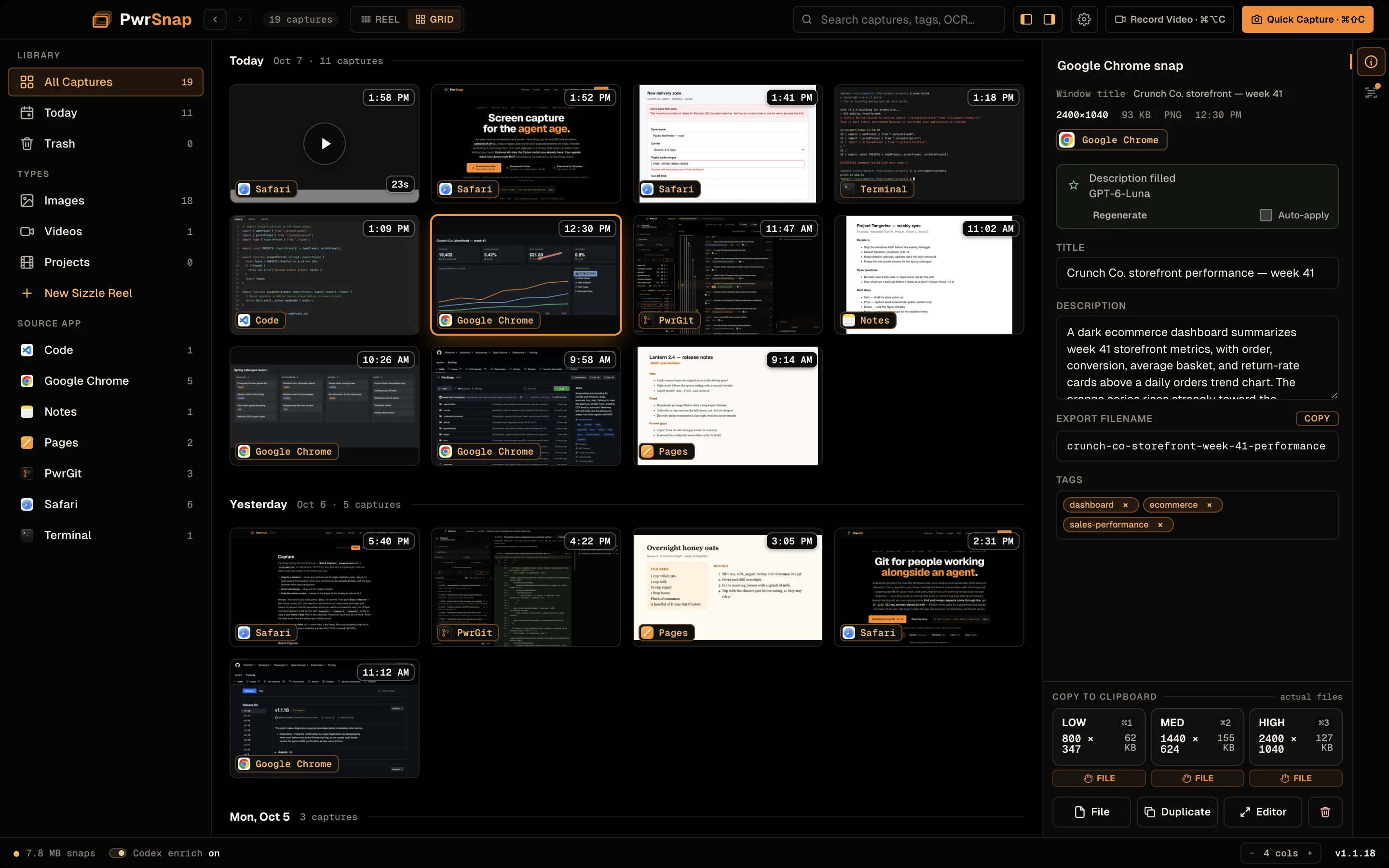
- A Library that opens on a day-grouped grid with full-text search and facets by type and source app. Flip to Reel for a filmstrip-over-stage view, or open any capture in Focus: a full editor with eight tools (pointer, arrow, shape, freehand draw, highlight, blur, text, crop), a Layers panel, undo/redo, three blur styles including a solid redaction, and crop with true uncrop. Duplicate a snap with or without its edits; the original and its copies stay linked as a family.
- Video too. Command+Option+C on macOS (unbound on Windows; bind it in Settings → Hotkeys), pick a region, count down, record. The video viewer has a filmstrip and waveform timeline, frame stepping, in/out trim, split and cut, and Cut idle to drop the stretches where nothing on screen moved. Export GIF or MP4 from the float-over, the tray, or the Library: the same six-card preset grid in all three places.
- Captures are real files in your Documents. Every capture is a
.pwrsnapbundle in~/Documents/PwrSnap/, named with a timestamp, the source app, and a title. On macOS, Quick Look thumbnails work in Finder without launching the app. The bundles back up like any other files. - Sizzle Reels. Check captures in the Library to fill a draft cart, then cut a narrated video: scenes with synthesized voiceover, clips timed to the narration, drag-reorder on a timeline. A per-project AI agent can search the library, draft scripts, set timing, and render. Voiceover uses an OpenAI API key you add. See AI → Sizzle-reel composer.
- AI, opt-in and routed where you choose. Turn enrichment on and one AI pass after each capture suggests a title, a description, a tidy filename, a few tags, and the text it read off the picture. Library Chat edits and redacts the open capture for you (“make all arrows blue”, “redact any email address”). Each job runs through your local Codex install, an ACP agent CLI (Gemini CLI, Qwen Code, Kimi Code CLI, or Grok), or a direct API connection you configure. See AI.
- Your agents can use it too. PwrSnap runs an opt-in local MCP server so PwrAgent, Claude Code, Codex CLI, and other agents on your machine can search the Library, read captures, request edits, and build reels, behind a native consent window, named revocable sessions, and per-permission roles. See Agents and Connect an agent.
- macOS and Windows. An Apple silicon and a universal macOS app, and a signed Windows x64 installer, all self-updating. See Install. Linux isn’t packaged.
Your originals stay untouched
Every annotation you add (arrows, drawing, highlights, blurs, text, crops) is stored separately from the original screenshot. The original picture on disk is never modified. What you see in the editor is the original with your edits composited on top, drawn fresh every time you copy, drag, or export.
That choice shapes a few things you’ll notice:
- Undo any single edit without losing the rest. Delete an arrow from a 3-hour-old capture without disturbing the highlights you added at the same time.
- AI’s edits are reversible. When Library Chat draws or changes annotations, they’re ordinary layers. Undo or delete them like anything else. The suggested title, description, and tags arrive as drafts you accept or edit, not permanent changes.
- Roll back to original at any time. Remove every annotation and you have the original screenshot, exactly as captured.
AI is opt-in
AI is off by default. With it off, PwrSnap still captures, copies, records, and lets you annotate by hand; you just don’t get the suggested title, description, filename, or tags. Enrichment asks for consent the first time you turn it on. From then on it sends a downsampled copy of each new capture to the provider you picked. Existing captures are never sent automatically.
You choose where each job runs, and each of the three (per-capture enrichment, Library Chat, and Sizzle Reel chat) can use a different one:
- An installed agent. Your Codex CLI, or an ACP agent CLI such as Gemini CLI, Qwen Code, Kimi Code CLI, or Grok. These run on the account you already signed them in to.
- A direct API connection you add yourself: an OpenAI- or Anthropic-style endpoint, a compatible service, or a model server on your own machine. PwrSnap calls it with your key, on your provider’s bill. Chat through a direct connection has no editing tools.
Spend stays visible: Settings keeps a 30-day usage log with list-price estimates where the backend reports tokens, and background enrichment draws from a budget that refills over time. See AI and Settings → AI Features.
Get started
- Install — macOS (Homebrew or DMG), Windows (signed x64 installer), first launch, update channels, uninstall.
- Capture — Quick Capture (window / region / full screen), video + GIF/MP4 export, float-over, multi-display.
- Library — grid, reel and focus, facets and search, the editor, the video viewer, duplicates, the Project Asset Cart.
- AI — consent, providers and direct API connections, capture enrichment, Library Chat, Sizzle Reels.
- Agents — the local MCP server for PwrAgent and other agents: consent, roles, permissions, budgets, audit.
- Connect an agent — the exact commands for Claude Code and Codex CLI, the PwrAgent button, and any other MCP client.
- Settings — every Settings page, its defaults, and when you’d change them.
Still stuck? Community Support is the Q&A board. Ask there and the answer stays public for whoever hits the same thing next. Bugs go to Issues.
PwrSnap is open source under the MIT license; the repo is at github.com/pwrdrvr/PwrSnap.