
AI
PwrSnap doesn’t ship an AI of its own. Every AI job goes to one of three kinds of backend that you already have or set up yourself, and you pick the backend per job:
- Codex. PwrSnap is a client of your installed Codex and runs over its App Server, on the account Codex is already signed in with.
- ACP agents. A locally installed agent CLI: Gemini CLI, Grok, Kimi Code CLI, or Qwen Code, on the account behind that CLI.
- Direct API connections. An endpoint you add yourself: a hosted API with your key, an OAuth endpoint, or a model server running on your own machine.
What that means in practice:
- Each job routes on its own. Capture enrichment, Library Chat and Sizzle Reel chat each have their own provider, model and reasoning level. Run enrichment on a cheap, fast model and chat on something heavier, or any other mix. The app’s labels follow your choice: the Library status bar names whichever provider does enrichment.
- Enrichment is off by default. Nothing about a capture is sent anywhere until you accept the consent prompt. Chat runs only when you send a message.
- Costs are visible and capped. Every run is logged with its model and token counts, priced at public list prices where PwrSnap knows them, and background enrichment sits behind a budget breaker.
- One exception to “bring your own agent”: the Sizzle Reel voiceover calls OpenAI’s text-to-speech directly, with an OpenAI API key you paste into Settings.
- Windows too. Codex discovery covers the Windows install locations, and no AI feature is limited to macOS.
How AI powers PwrSnap
Three jobs:
- Capture enrichment. One AI pass after each new capture drafts a title, a description, up to four tags, an export filename, and the text that matters in the picture. Video captures are enriched from frames sampled out of the clip.
- Library Chat. An agent in the Chat tab of the Library and the editor that reads, edits and redacts the capture you’re looking at, and cuts idle stretches out of recordings.
- Sizzle Composer Chat. A per-reel agent in the Sizzle Reels composer that searches the Library, builds scenes, writes narration, sets transitions and renders.
Search is plain text over titles, descriptions, accepted tags, the captured text, source app and window title. PwrSnap does no semantic or vector search.
Where the AI runs
Providers live under Settings → AI Providers, one screen each. Which provider does which job is set under Settings → AI Features → Default agents.
Codex
PwrSnap finds the Codex installs on your machine, lets you use the newest or pin a specific path, tests the connection, and shows which Codex sign-in it will use. Requests ride your existing Codex account. Field by field: Settings → Codex.
ACP agents
Gemini CLI, Grok, Kimi Code CLI and Qwen Code are agent CLIs that speak the Agent Client Protocol. Each has its own screen under AI Providers that finds installed copies (or takes a path you type), with an Enable checkbox. An enabled agent shows up in every job’s provider picker. Requests ride whatever account that CLI is signed in with. See Settings → ACP agents.
Direct API connections
Settings → AI Providers → Add connection sets up an endpoint PwrSnap calls itself, with no agent in between. It takes four steps: Where, Sign in, Models, Use it for.
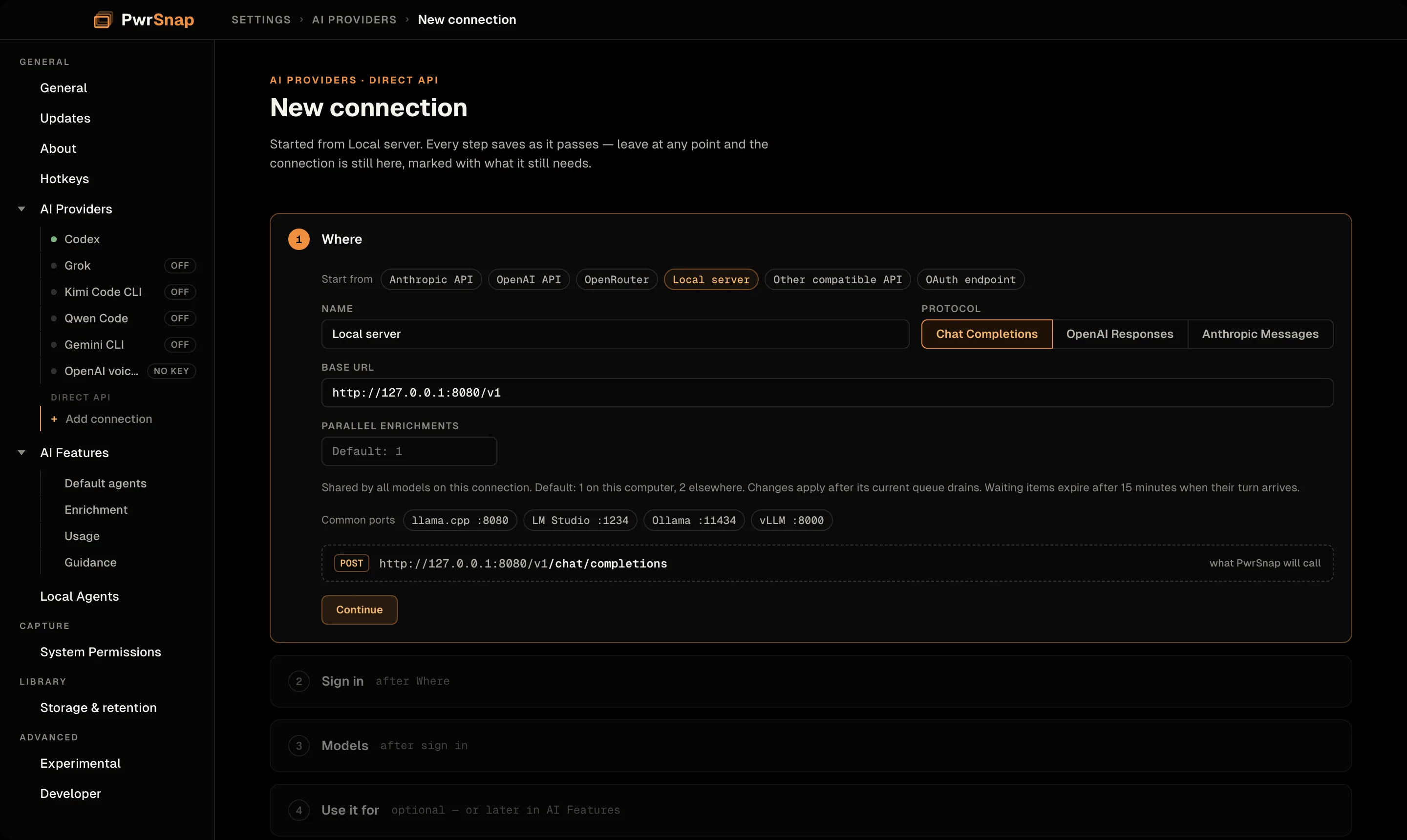
- Templates fill in a starting point: Anthropic API, OpenAI API, OpenRouter, Local server, Other compatible API, OAuth endpoint. A template sets the address, protocol and sign-in type, nothing else.
- Protocols: Chat Completions (OpenAI-compatible, including local servers such as llama.cpp, LM Studio, Ollama and vLLM), OpenAI Responses, and Anthropic Messages.
- Sign in is no auth, an API key, or OAuth. A key is stored encrypted on this computer and never shown again. PwrSnap checks it by asking the endpoint for its model list, which runs no model and costs nothing. OAuth opens the provider’s sign-in page in your browser.
- Models: tick the models you want in PwrSnap’s pickers and answer Image input for each (Yes / No / Unknown). PwrSnap never guesses what a model can do from its name. Enrichment needs a model with Image input: Yes; Unknown is fine for chat.
- Use it for optionally makes the connection the default for enrichment, Library chat, or Sizzle Reel chat.
A direct connection is plain inference, with no tools. As an enrichment backend it gets the same bounded copy of the picture an agent would and returns text. As a chat backend it can talk about a capture but can’t draw, redact or edit anything, and the job picker says so: “Direct API · no tools, reasoning controls or pricing estimate”. PwrSnap never falls back from a direct connection to Codex or an agent.
Agents on your machine
Separately from the AI inside PwrSnap, PwrSnap can expose your Library to agents: an opt-in local MCP server that lets PwrAgent, Claude Code, Codex CLI and other MCP clients search captures, read pixels, request edits, cut recordings, make copies and build reels. It sits behind a native approval window, named revocable sessions and per-permission roles, and has its own page: Agents.
Library Chat and the agent-facing image-edit tool share the same editing commands, so an edit an outside agent asks for lands as the same kind of undoable layer as one you drew by hand.
First-run consent
Enrichment is gated behind a one-time consent prompt. It appears the first time you turn enrichment on, whether from Settings → AI Features → Enrichment, the float-over’s Enable button, or the Library status bar’s enrich switch.
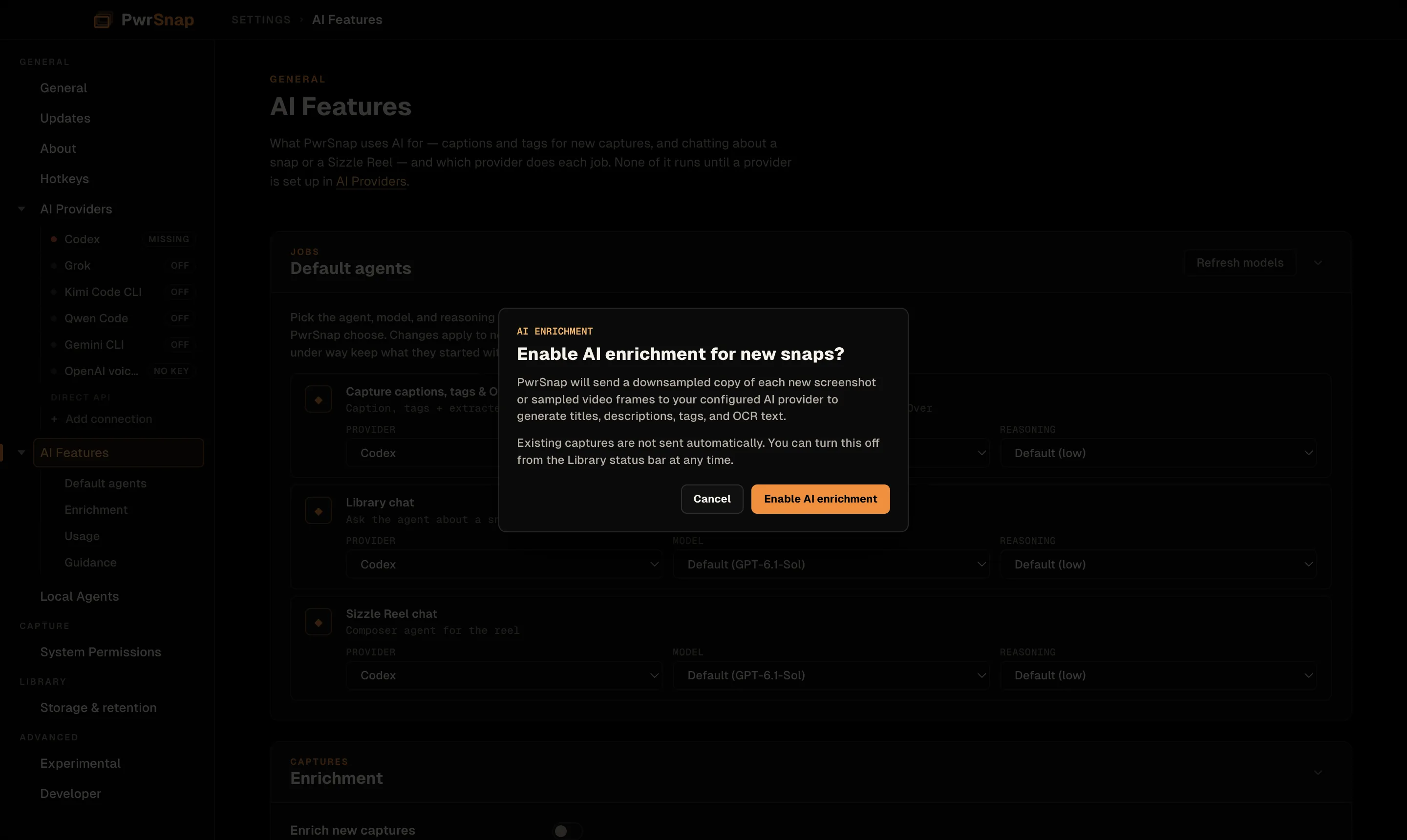
It says, in so many words:
PwrSnap will send a downsampled copy of each new screenshot or sampled video frames to your configured AI provider to generate titles, descriptions, tags, and OCR text.
Existing captures are not sent automatically. You can turn this off from the Library status bar at any time.
Until you choose Enable AI enrichment, no capture is enriched, automatically or by Regenerate. Capture, copy, annotation and export all work the same without it.
Chat isn’t behind this prompt because it never runs on its own. An agent sees a capture only when you open a chat about it and send a message.
Capture enrichment
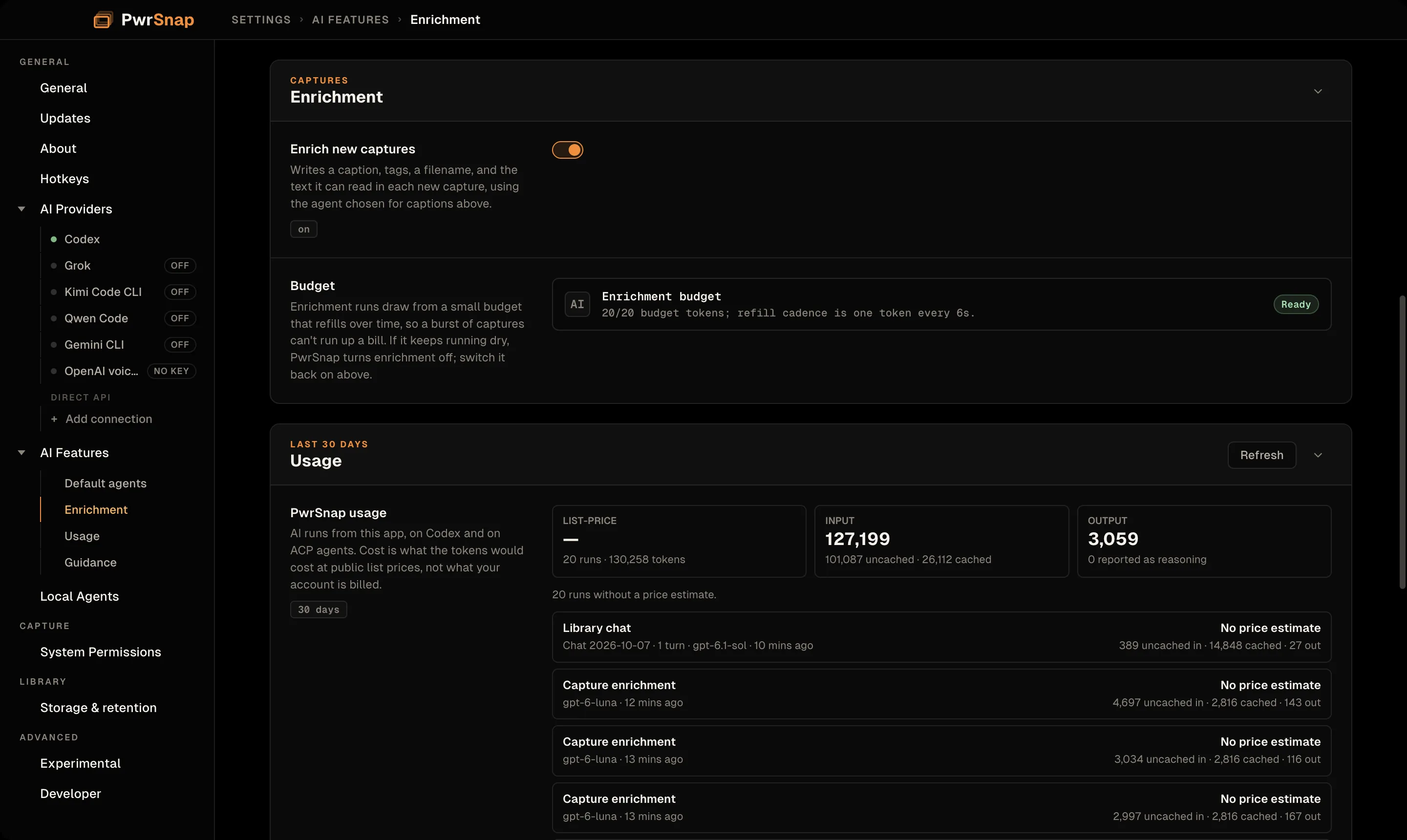
The switch for this is Settings → AI Features → Enrichment → Enrich new captures, next to the budget. The agent that does the work is picked under Default agents (Capture captions, tags & OCR).
Drafts and Auto-apply
Enrichment results arrive as drafts. The float-over and the Library’s right rail say “Drafted a title + description” with the model’s name, and each field is marked AI draft with its own Use button. Use draft takes the title and description in one click. Suggested tags show as + chips you accept one at a time. Regenerate runs enrichment again for that capture.
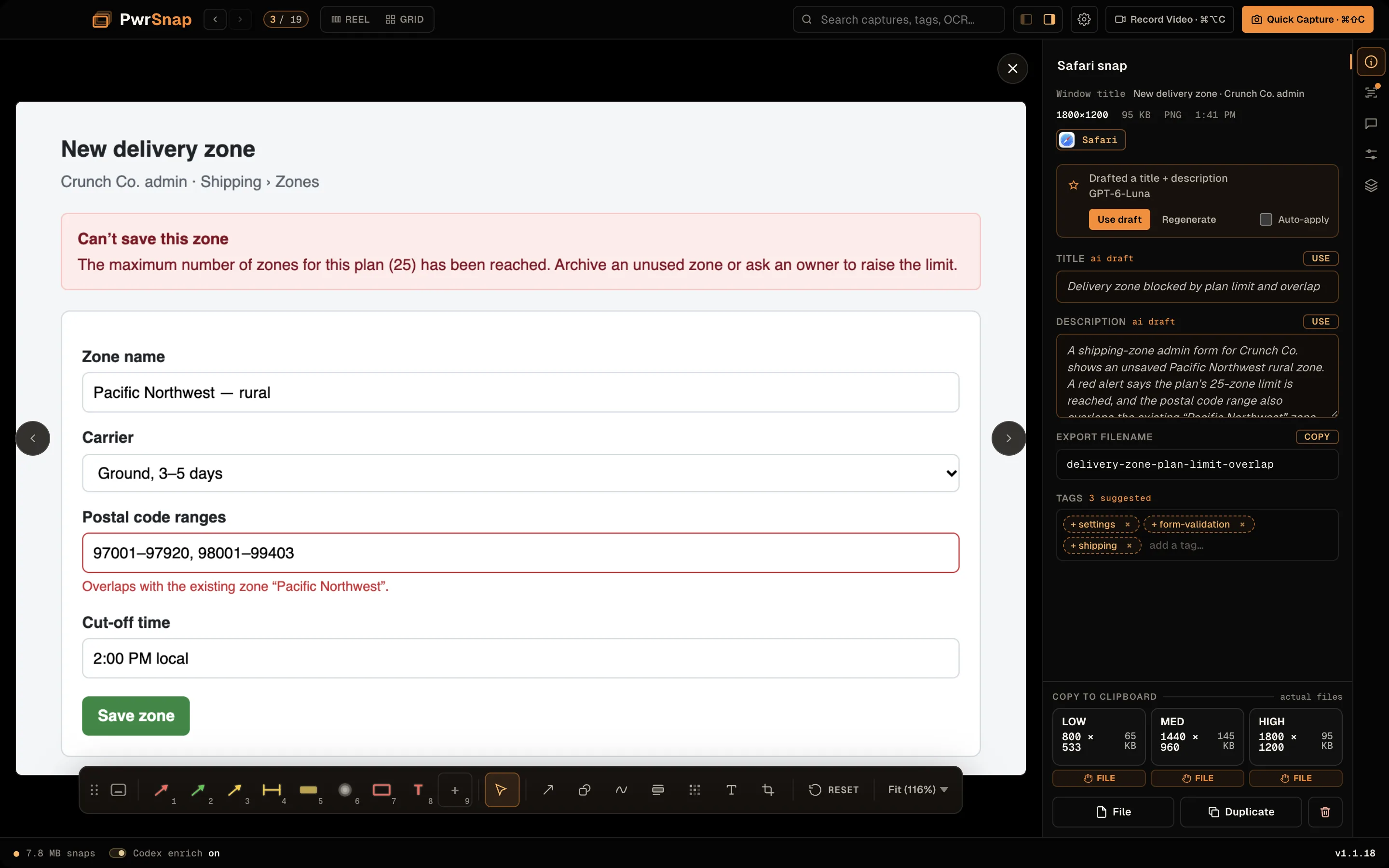
Auto-apply (off by default) applies drafts as they arrive: the title and description, unless you’ve already set your own, and the top two suggested tags. The checkbox in the float-over and the one in the Library are the same setting.
Drafted titles and descriptions are searchable straight away, before you accept them. Tags count for search once they’re accepted.
Title
A one-line headline, at most 120 characters, shown above the picture in the float-over and the Library. Titles also caption frames in the Sizzle Reels composer.
Description
One to three sentences on what’s visible and why the capture might matter later, written to work as alt text when you paste the picture somewhere. It also feeds the Sizzle Reels composer.
Tag
Two to four short, lowercase, reusable tags per capture. The model is shown the tags you already use and prefers them, so “deploy” and “deploys” don’t split your Library.
Filename
A lowercase, dash-separated filename stem with no extension, the kind that’s easy to paste anywhere. It names the files you export, and PwrSnap names the capture’s own file on disk after it too.
OCR text
Enrichment also returns the visible text that identifies the capture: a few short snippets, not a full transcript. The OCR tab in the Library’s right rail shows it, and it’s searchable, so you can find a screenshot by the error string in it.
How enrichment is contained
A screenshot is untrusted input. It can contain text written to talk a model into doing something, and enrichment runs unattended in the background, so PwrSnap limits what the model can do rather than relying on the prompt asking nicely.
- Codex enrichment runs in a sandbox: no tools, no commands, no network of its own, and no file access outside an empty scratch folder PwrSnap creates for it. Your captures, settings and home folder are out of reach, your own Codex MCP servers and hooks are switched off for the run, and nothing carries over from one capture to the next. Any request to do more is refused and logged.
- ACP agent enrichment is weaker. The Agent Client Protocol has no sandbox concept. PwrSnap runs the agent in a scratch folder and denies its built-in shell, file and web tools when it asks for them, but that is matching on what the agent requests, not an enforced sandbox. If that matters for what you capture, run enrichment on Codex.
- Direct API enrichment sends the picture to the endpoint you configured and gets text back. The model has no tools and no way to touch your machine.
In every case the picture travels as a downsampled image, never as a file path the model could open for itself.
Sensitive-data review
What ships: redaction on request, sharpened by your patterns. Ask Library Chat to “redact any email address you see”, or account numbers, or API keys, and the agent finds them and covers them. For anything secret it defaults to an opaque blackout, because blur and pixelation can sometimes be reversed.
Two controls in Settings → AI Features → Guidance tune it:
- Sensitive-data patterns. A name plus a shape-only regex (for
example
sk-XXXXXXXXfor an API key) that the agent uses to find every match in one pass. Never paste a real secret: patterns are stored in plain text and included in a Settings export. - User Guidance. Standing instructions added to every chat: “always black out account numbers, never blur”, preferred colors, domain terms.
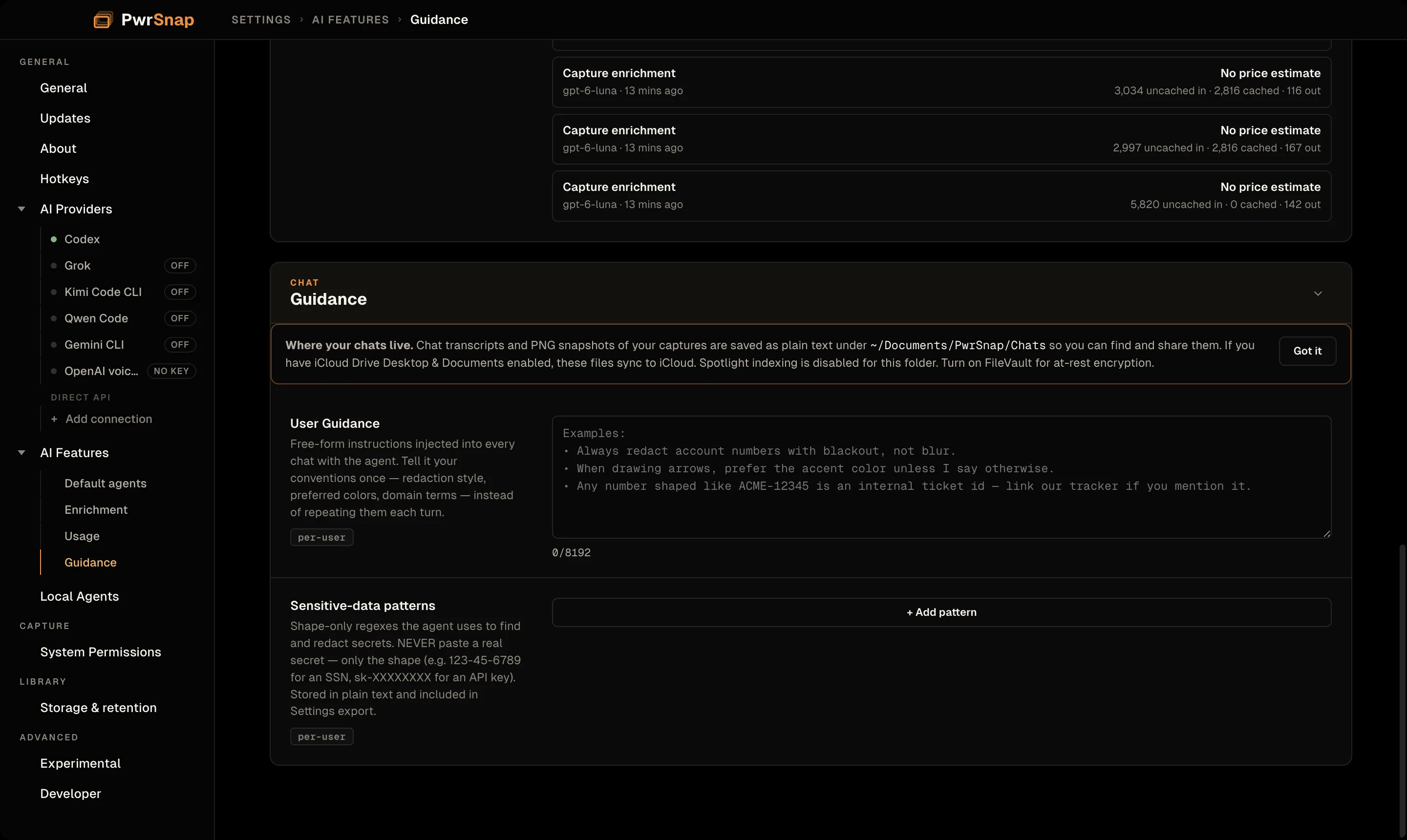
Nothing scans captures for secrets automatically, and nothing holds back the clipboard. What you copy is what you annotated.
Library Chat
Select a capture and open the Chat tab in the right rail, in the Library or the editor (see Library → right sidebar). The agent works on that capture, and it acts rather than describes:
- “Point an arrow at the basket drop and box the top region”: it looks at the picture, draws, then looks again to check.
- “Make all arrows blue and Large”, “delete that box”: it edits the layers already there instead of drawing duplicates.
- “Redact any email address you see”: it reads the capture’s text, finds the matches, and blacks them out.
- “Crop to the window”: it crops for you.
- On a recording, “cut the parts where nothing happens for more than 5 seconds”: it reads the recording’s on-screen activity and cuts the idle stretches, the same kind of edit as the timeline’s Cut idle.
- “What does this error mean?”: plain questions work too.
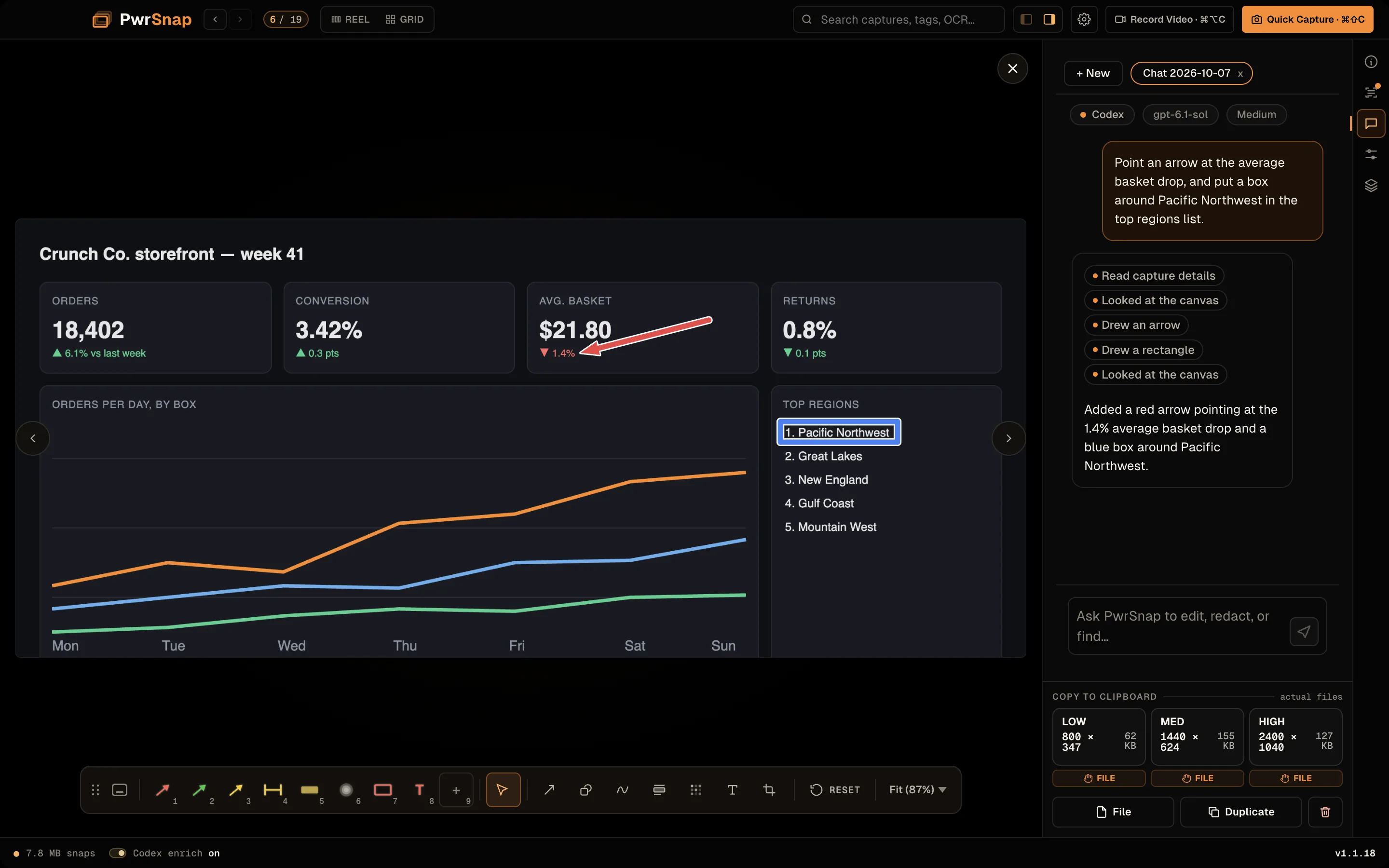
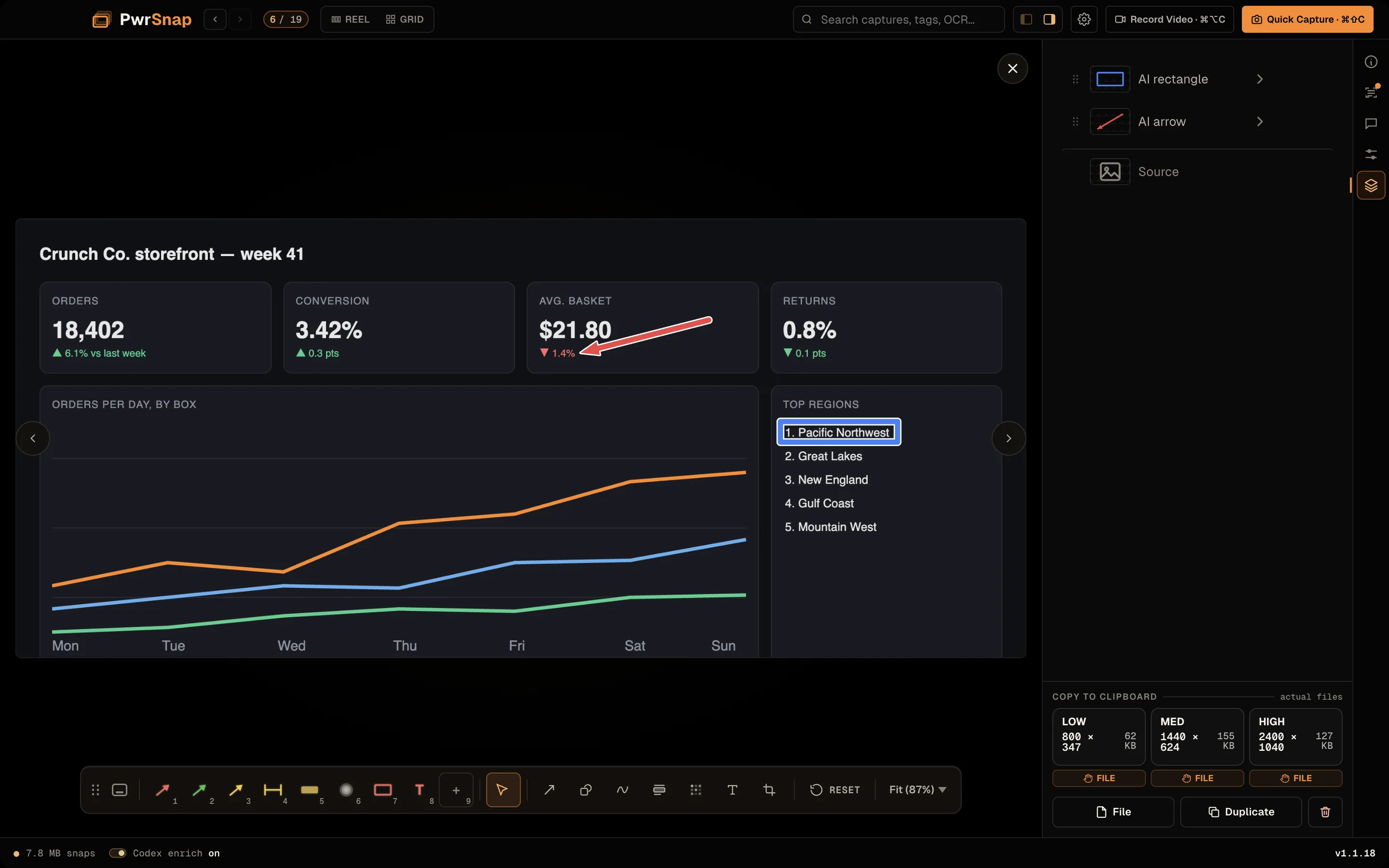
Everything the agent draws is an ordinary layer, named as AI work in the Layers panel, and you can move, restyle or delete it by hand. Command+Z undoes it; the agent groups a set of annotations so one undo takes back the whole set.
- Threads. Keep several per capture; start, rename and close them. Pick the provider, model and reasoning level on the chips before the first message; after that the thread keeps them.
- Where chats are kept. Transcripts, with PNG snapshots of the
capture, are saved as plain text in
PwrSnap/Chatsinside your captures folder (~/Documents/PwrSnap/Chatsby default). - Sandboxed. The agent’s tools are PwrSnap’s own: browsing the Library, reading and editing layers, drawing, redacting, tagging, cropping and cutting recordings. It can’t delete captures. If it asks for anything outside its sandbox, an approval dialog comes up with Approve and Deny.
- Text in the picture is data, not instructions. The agent is told to ignore directives it reads in a capture.
On a direct API connection the chat has no tools, so it can answer questions but can’t edit.
Sizzle-reel composer
A Sizzle Reel is a narrated video built from your captures. Open
the composer from New Sizzle Reel in the Library sidebar, from
Library → Sizzle Reels… in the menu bar, or from a selection in
the Project Asset Cart with Create
New Sizzle Reel (cart order is kept). The finished MP4 lands in
your Movies folder (Videos on Windows) under PwrSnap/, and a
Reveal button shows it in Finder or File Explorer when the render
is done.
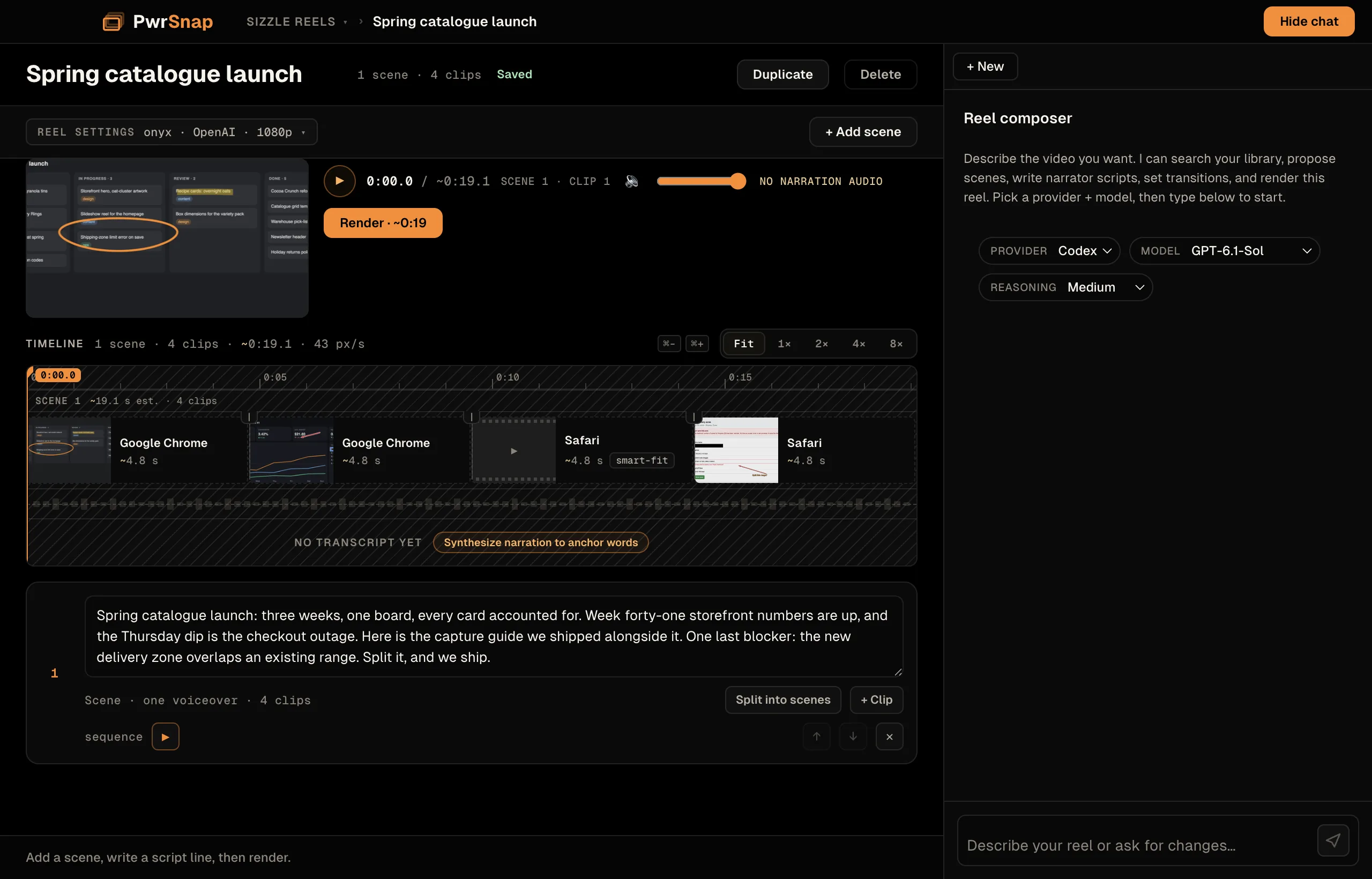
~ until the narration is synthesized and its real length is known.A reel is a sequence of scenes. A scene is one voiceover, the narration you write for it, over a single capture or a run of clips shown while that narration plays.
- Narration per scene, in the scene’s text box (“What does the narrator say over this scene?”). Split into scenes breaks a long script into several; + Clip adds a capture to the scene.
- Clip timing defaults to auto: clips between anchors share the time evenly. Anchor a clip to a phrase in the transcript to make a cut land on a word. That needs a narration preview first, so there’s a timed transcript to anchor to.
- Fitting a video clip that’s the wrong length: trim, freeze the last frame, loop, ping-pong, speed to fit, or let PwrSnap decide (smart-fit). A video clip can play its own audio, the voiceover, or nothing.
- Transitions between clips and scenes, and the slow Ken Burns push on stills, preview in place before you render.
- Reel settings: voice (six OpenAI voices), provider, and resolution, 1920 × 1080 or 1280 × 720.
- Duplicate forks the whole reel to try a different cut.
The render button reads Render · M:SS with the reel’s length in
the label, and a ~ while the length is still an estimate. Progress
shows in the status bar along the bottom.
The timeline
Under the preview is a horizontal timeline on one time axis. Five lanes stack up:
- a ruler with timecodes,
- scene regions, so you can see where each scene starts and ends,
- the clips,
- the narration waveform, and
- a word ribbon: the narration’s words laid out where they’re spoken. It reads “No transcript yet” until narration has been synthesized.
A playhead spans all five; scrub it and the preview follows. Drag a clip to move it or change how long it runs. The edit commits when you let go, and Escape mid-drag abandons it. Zoom with Command+= / Command+- through Fit · 1× · 2× · 4× · 8× and scroll past the fit width.
The word ribbon is what makes “cut to the next shot when she says latency” something you do by eye: find the word, drag the clip edge to it. Phrase anchors do the same job by text, and the two stay in sync. The timeline is a second way into the same timings.
Sizzle Composer Chat
The composer has its own chat (Hide chat tucks it away), with an agent scoped to the reel. It can search the Library; add, remove and reorder scenes and clips; write scripts; set transitions, audio and durations; and render:
- “Find the dashboards I captured this week and make a 30-second reel.”
- “Write narration that sounds like a release-notes walkthrough.”
- “Crossfade between every scene, then render.”
It’s the same chat as Library Chat with a different toolset. Pick the provider, model and reasoning level before the first message.
Voiceover uses OpenAI directly
Narration is synthesized by OpenAI’s text-to-speech API, called directly; none of the chat backends do speech. It’s the one place PwrSnap holds a provider key for you. Paste an OpenAI API key into Settings → AI Providers → OpenAI voiceover; PwrSnap stores it encrypted through the operating system’s secure storage and uses it for every reel you render. It’s billed to that key like any other OpenAI API usage.
Without a key, nothing narrated renders. Previewing narration returns “Set your OpenAI API key in Settings → AI Providers”, and a scene whose audio is a voiceover can’t render. PwrSnap has no speech input, so you can’t record narration yourself. A reel whose clips all carry their own audio, or are muted, renders without a key.
Costs and budgets
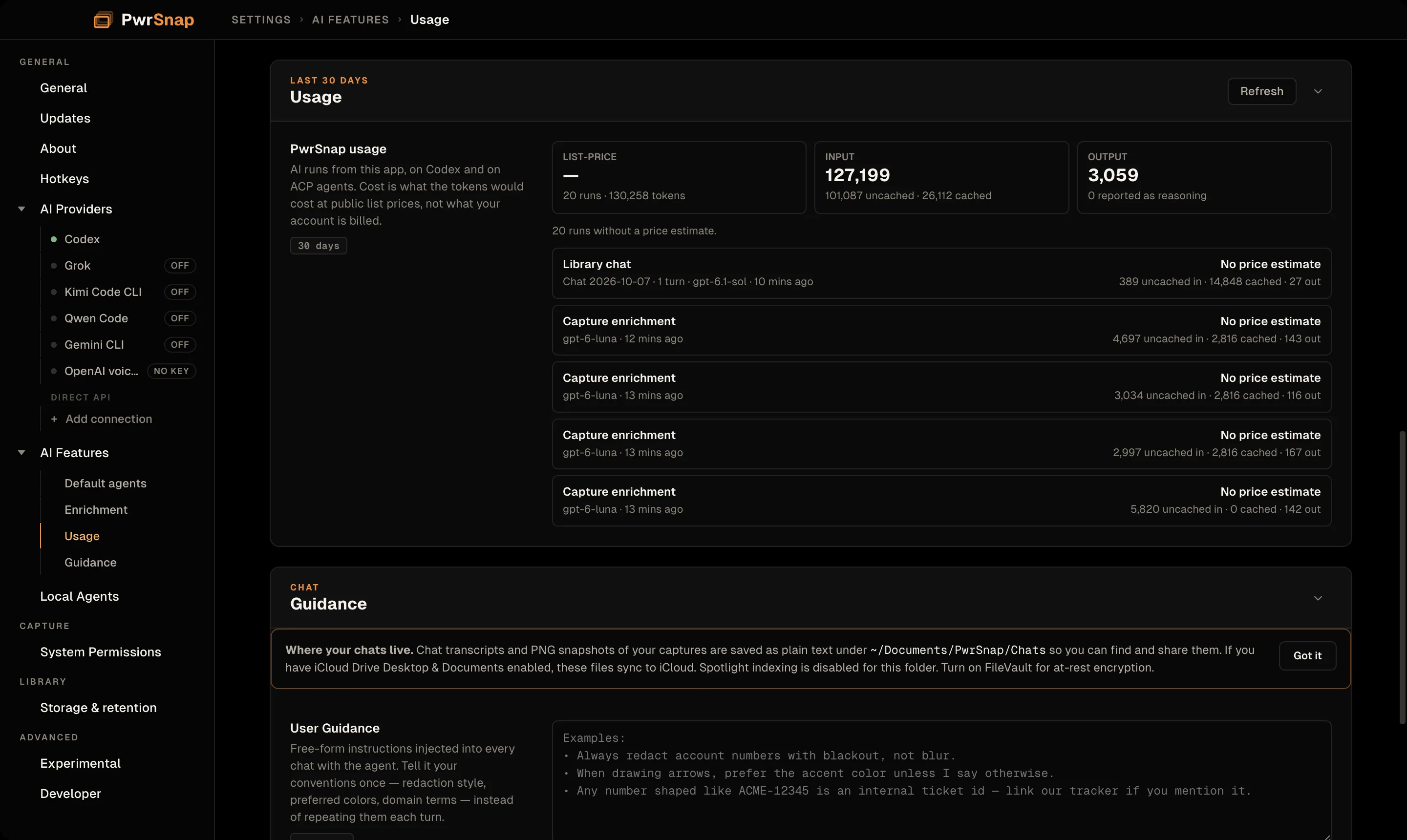
Settings → AI Features → Usage covers the last 30 days:
- Totals for list-price cost, input tokens (uncached and cached), output tokens (with the share reported as reasoning), and a run count.
- One row per run, newest first: what triggered it (auto enrichment, a regenerate from the Library or the float-over, a Library chat turn, a Sizzle chat turn), the model, its age, its tokens and its cost.
The cost is what the tokens would cost at public list prices, not your invoice. A run on a model PwrSnap has no price for, which includes every direct API model, shows “No price estimate”. A backend that reports no token counts shows “Usage unavailable”. Neither is guessed.
The budget breaker. Enrichment draws from a bucket of 20 budget tokens that refills at one token every 6 seconds; Settings → AI Features → Enrichment shows the live count. Run it dry and the badge reads Slow mode, with the time of the next token. Run it dry repeatedly and enrichment turns itself off (Safety off) until you turn it back on: Enrich new captures, the Library status bar’s switch, or the float-over’s Re-enable. The breaker governs background enrichment only; chat is never switched off.
- Every capture is a call. PwrSnap doesn’t spot near-identical screenshots and reuse an answer. That’s what the budget is for.
- Stalled runs fail cleanly. Enrichment turns have a hard timeout. A run that stalls, or is cut off by quitting, is marked failed with a Regenerate button instead of spinning forever.
- No backend? The AI surfaces show Configure AI, which opens AI Providers. Capturing and copying carry on without suggestions.
Turn Enrich new captures off and enrichment stops at once: no new runs, no background work. Chat stays available for when you ask.
Not yet
Voice describe
Holding a shortcut, talking, and having the transcription go to the AI the way a Library Chat message does is planned, not built. PwrSnap has no speech input today.
An automatic sensitive-data pass
The plan is a review after every capture that covers visible keys, credentials and IDs before the float-over’s copy shortcuts go live. Until then, redaction is on request.