
Agents
PwrSnap can hand a local AI agent — PwrAgent, a coding agent in your terminal, anything that speaks MCP — a controlled door into your Library. The agent can search captures, read pixels, ask for edits, cut recordings, make copies, and build Sizzle Reels, and every one of those actions runs through PwrSnap rather than around it.
It’s off until you turn it on, and once on, every connecting agent still has to get past a consent window you answer by hand.
What it is
PwrSnap runs a small MCP server on the loopback interface:
http://127.0.0.1:51729/mcp
Loopback only. Nothing on your network can reach it, and PwrSnap
rejects any request that didn’t arrive addressed to
127.0.0.1:51729.
The point of routing agents through a server instead of just
letting them read ~/Documents/PwrSnap/ is that a file is a
file — a request is checkable. Going through PwrSnap means:
- The agent sees the edited composite by default, so a redaction you drew is a redaction the agent gets. Reaching the original pixels underneath is a separate, higher-tier permission most roles don’t grant.
- Every request is checked against a role you assigned, a history horizon you picked, and a rolling budget — at the moment it runs, not at the moment you approved it.
- Edits happen through PwrSnap’s own editing commands, so they land as ordinary layers you can undo. See Library → your originals stay untouched.
Turn it on
Go to Settings → Local Agents. The page is titled Authorization graph, and the first card is MCP server:
Enable local-agent access — “When off, PwrSnap does not listen for MCP connections. Saved Sessions and roles remain available. When on, every connection still requires native approval and an assigned RBAC role.”
Flip it on and PwrSnap starts listening. A badge next to the header shows the live listener state, so you can tell “switched on” from “actually accepting connections” — if the port is busy, the switch staying on is not a claim that the door is open.
Once it’s listening, the next card, Claude Code and Codex, shows the connect command for each with a Copy button (see Connect an agent).
Turning it back off stops the listener. Your saved sessions and roles survive; they just have nothing to attach to.
Connect an agent
Point your agent at http://127.0.0.1:51729/mcp and let it do the
normal MCP OAuth handshake. PwrSnap registers the client
dynamically — there’s nothing to paste, no key to generate.
Your agent opens the authorization page in your browser as usual, but nothing is approved there. The page reads Continue in PwrSnap and waits, and PwrSnap opens its own window:
A local MCP client wants to access PwrSnap
Your library can contain private screen content. Choose exactly what this local agent may search, read, create, or change.
Underneath, in order:
Client-reported label: <name>— what the agent calls itself. It’s display metadata, not identity: any local process can claim any name, so treat it as a hint about which window you’re looking at, not proof of who’s asking.- Session Name — “Use a unique name you will recognize later in Access Control.” This is the handle you’ll revoke by, so name it after the thing that’s connecting, not after the task.
- Choose an access role — a radio list of the built-in roles that fit inside what the agent asked for, plus Custom role (“Pick individual permissions and a limit on how far back the agent can see.”).
- If you pick Custom: a Capture history horizon — Last 7 days / Last 30 days / Last 90 days / Last year / All time — and a checkbox per requested permission, each showing its label, what it actually does, and the raw capability id.
- Deny or Allow access. The footer reminds you: “Access can be changed or revoked later in PwrSnap Settings.”
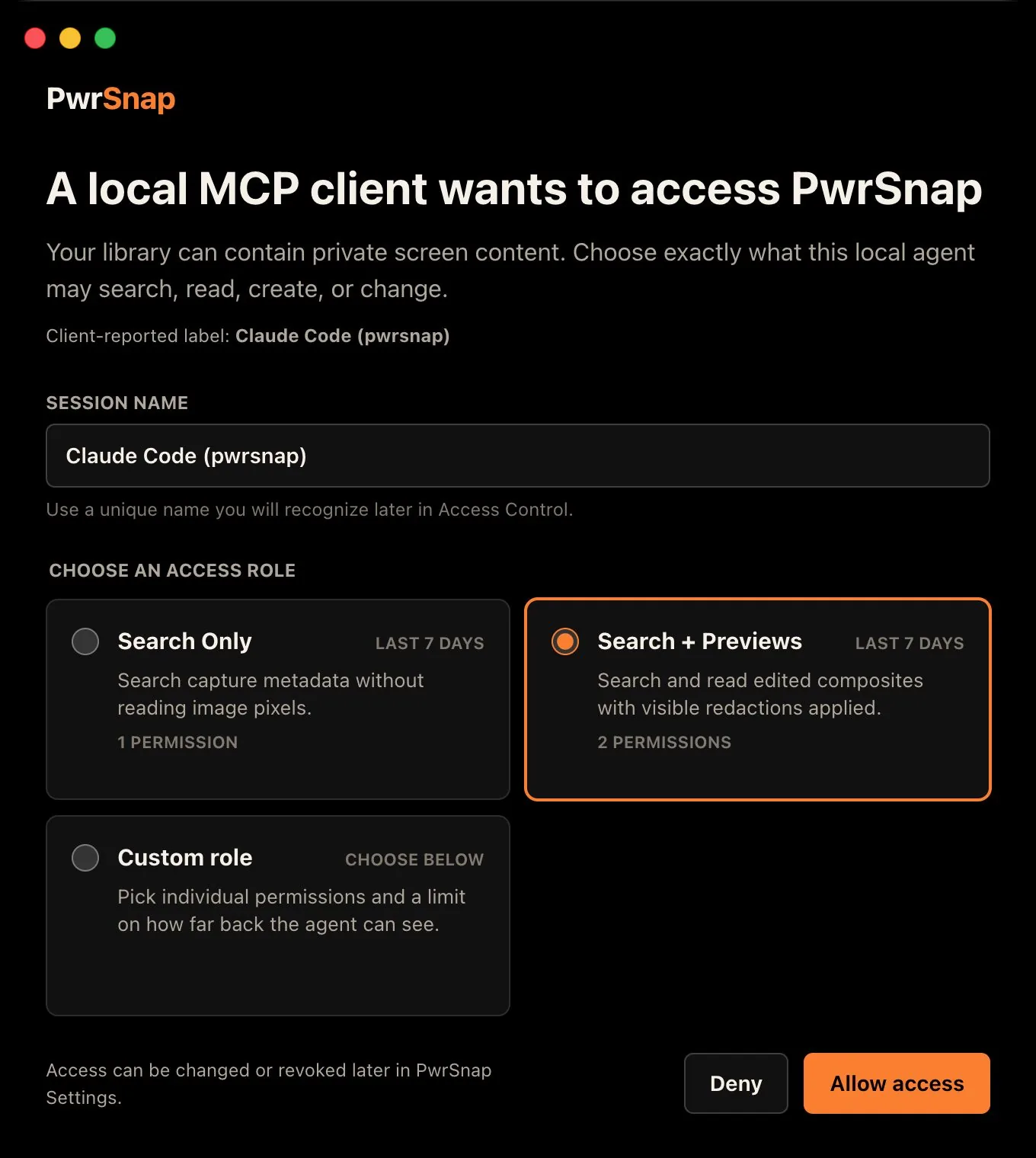
Once you answer, the browser page hands the result back to the agent and you can close it. An authorization request expires after five minutes if you don’t answer it; start the agent’s login again to get a fresh one.
The agent’s side of this is ordinary MCP. The exact commands for Claude Code and Codex CLI, the PwrAgent button, and what any other MCP client needs are on Connect an agent.
Roles
A role is a bundle of permissions plus two limits: how far back in your history the agent can see, and how much it can do in a rolling 24 hours. Six ship built in:
| Role | What it can do | History | Budgets |
|---|---|---|---|
| Search Only | Search capture metadata without reading image pixels | 7 days | 50 / 1 / 1 / 1 / 1 |
| Search + Previews | Search, and read edited composites with visible redactions applied | 7 days | 50 / 200 / 1 / 1 / 1 |
| Full Media | Search, read edited and original pixels, and create exports | 30 days | 500 / 2000 / 250 / 1 / 1 |
| Image Editor | Full Media, plus PwrSnap-owned image edits | 30 days | 500 / 2000 / 250 / 100 / 1 |
| Sizzle Producer | Search, read edited previews, compose reels, render previews | 30 days | 500 / 2000 / 1 / 100 / 1 |
| Full Access | Every permission, including originals, Trash, and full-resolution renders | unlimited | 1000 / 2000 / 250 / 200 / 100 |
Budgets read searches / preview images / full-res images /
edits / trash moves, each per rolling 24 hours. A 1 is not a
typo — it’s the smallest non-zero allowance, enough that a
misrouted call fails visibly rather than silently succeeding.
Custom roles. Hit + New custom role on the Local Agents page, or Duplicate a built-in and edit the copy. The role editor takes a name, a description, a Capture history (Last 7 / 14 / 30 / 90 days, or All time), a checkbox per permission, and Sliding-window budgets: a limit and a window in hours for each of the five budgets. A fresh custom role starts at 7 days of history and 50 / 200 / 25 / 25 / 10 per 24 hours. A Custom role picked in the approval window is saved as a role of its own, named after the Session.
Built-ins are drift-checked: if a built-in role’s definition ever doesn’t match what PwrSnap expects, every session bound to it fails closed rather than running with the wrong permissions. Edit a duplicate, not the original.
Permissions
Nine capabilities, with the labels you’ll see in the consent window and on the Settings page:
| Permission | What it lets an agent do | Tier |
|---|---|---|
| Search library | Search capture metadata inside the role’s history limit | standard |
| Read edited previews | Fetch pixels after PwrSnap edits and redactions | standard |
| Read original images | Fetch original pixels that may bypass visible redactions | sensitive |
| Export captures | Write out a capture at a chosen size and format | sensitive |
| Edit images | Change a capture through PwrSnap-owned edit commands | sensitive |
| Move to Trash | Move a capture to the recoverable PwrSnap Trash | destructive |
| Compose Sizzles | Create and update Sizzle compositions | sensitive |
| Read Sizzle previews | Render preview-quality Sizzle media | sensitive |
| Read full Sizzles | Render full-resolution Sizzle media | destructive |
The composite / original split is the one to understand. “Read edited previews” gets the picture as you see it, redactions baked in. “Read original images” gets what was underneath. They’re deliberately separate permissions, and every role below Full Media grants only the first — so an agent without Read original images can’t see under a redaction you drew.
Nothing short of Full Access grants Move to Trash or Read full Sizzles, and nothing at all exposes a permanent delete — the Trash is as far as an agent can go, and the Trash is recoverable.
Sessions, budgets, and audit
Each approval becomes a named, durable Session. The Local Agents page draws them as a graph — Session → role → permissions, with allowed paths in the accent color and rejected ones in red — and every Session card carries the client’s self-reported label, an active/revoked badge, a role dropdown you can change on the spot, when it was last used, and Revoke.
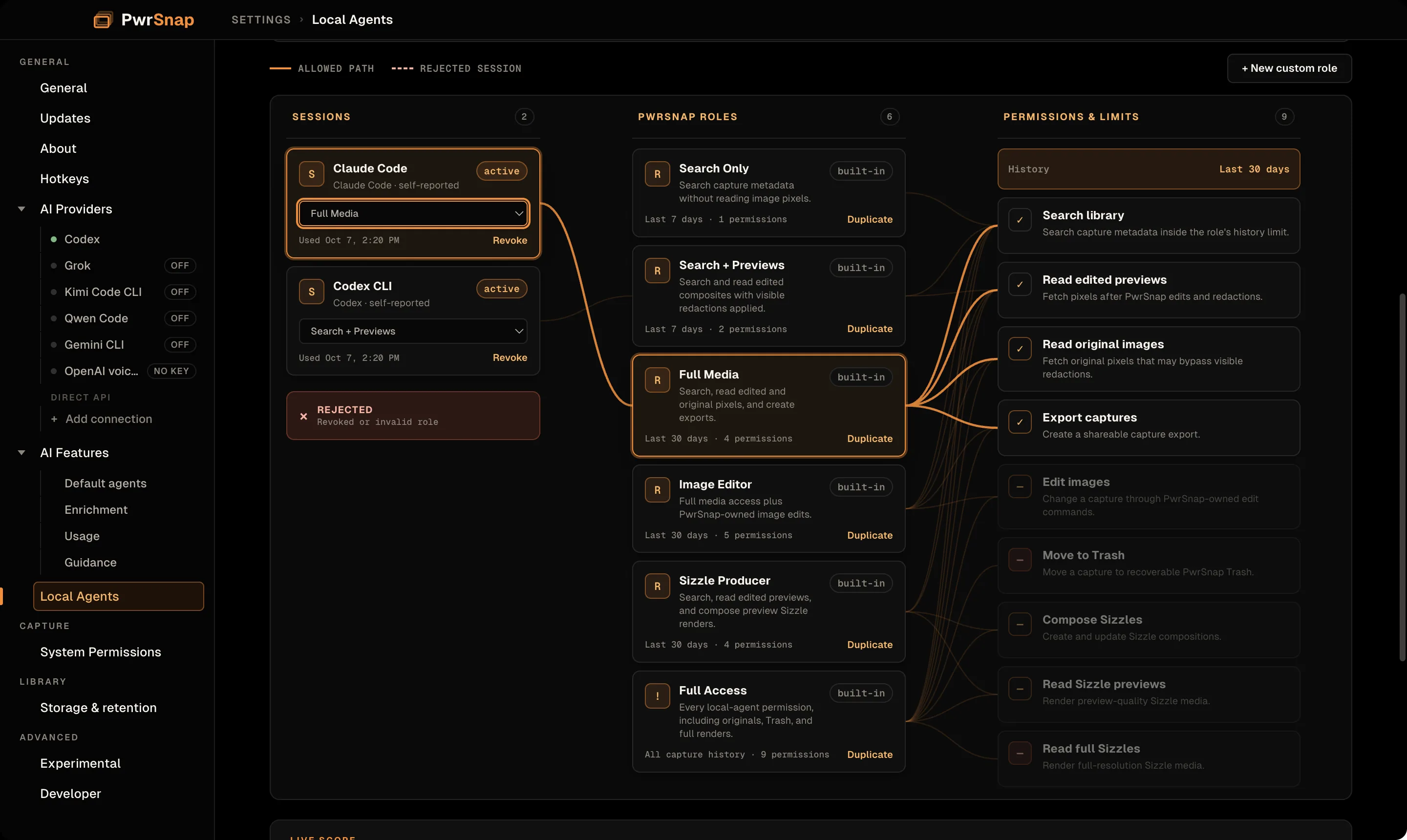
Policy is re-resolved on every single call. Revoking a session or narrowing its role takes effect on the agent’s next request, not at its next restart — and anything ambiguous fails closed.
Session Names are unique while active. A second connection
under a name that’s still active is refused with invalid_grant
until you revoke the old session or pick a different name. To
reconnect an agent under the same name, revoke its old Session first,
then run its connect recipe again.
Budgets are sliding windows, shown with used-vs-limit bars under a LIVE SCOPE card for the selected session:
- Searches
- Preview images
- Full-res images
- Edits
- Trash moves
Each reads used / limit over its rolling window: 24 hours for the
built-in roles, whatever you set for a custom one. Alongside them,
Capture history shows the horizon: “Searches and direct
resource reads are checked against this moving horizon.”
Audit. A collapsed Recent agent actions card shows the last 50 protected-media and mutation actions — what was done, which Session did it, which capture, when, and whether it succeeded. Reads that aren’t protected don’t clutter it: “Protected media and mutation actions appear here.”
What an agent can do
The tools PwrSnap exposes, in plain English. Each needs the
permission in brackets, or it doesn’t run. A tool the Session’s role
can’t use is refused with a missing_capability error naming what’s
missing.
Finding things
- Search the Library by text, source app, exact tags, kind (image or video), date, and whether there’s captured text. No-query searches come back newest first; queries come back by relevance. [Search library]
- List what’s searchable: the source apps and accepted tags actually in the Library, so the agent can build a real filter instead of guessing. [Search library]
- Read one capture’s metadata, compact and without pixels. [Search library]
Reading pixels
- Fetch a capture: the current edited composite by default, or the original if the role allows it. [Read edited previews, or Read original images]
- Export a capture at Low / Med / High as PNG, JPEG, PDF, or (on supported macOS installs) HEIC. Defaults to Med PNG. [Export captures, plus the matching read permission]
Changing images
- Edit an image: one or more instructions applied in a single blocking turn, through the same editing commands as Library Chat, so the result is ordinary undoable layers. The finished composite comes back with the reply unless the agent asks it not to. [Edit images and Read edited previews, plus Export captures to get the image back]
- Move a capture to Trash, recoverable. Permanent purge isn’t exposed to agents at all. [Move to Trash]
Recordings
- Inspect a recording: its length, the current edit (kept spans, cuts, exported length), and an on-screen activity summary that marks the still stretches, so an agent can plan cuts without watching the video. [Search library]
- Cut a recording: keep exactly some spans, cut spans out, cut every still stretch longer than a threshold (the agent’s version of Cut idle), or reset to the whole clip. The recording itself is never changed, and you can undo the cuts in the Library. [Edit images]
Copies
- Duplicate a capture: an independent copy with its own ID, in the same family as the original. The agent must say whether the copy carries the current edit (crop and annotations; trim and cuts on a recording) or only the original. Title, description, tags and captured text come along, with the title numbered within the family. The source is never changed. [Edit images]
- Summarize a capture’s edits: what the current edit consists of, as a short line such as “crop · 2 arrows · blur”, which is exactly what a copy with edits would carry. [Search library or Edit images]
- List families, and read one family: an original and the copies made from it, oldest first. [Search library]
Sizzle Reels
- Create a reel from a set of captures, optionally with a brief that starts its composition chat. [Compose Sizzles]
- Send a follow-up instruction to that reel’s chat, and check its status. [Compose Sizzles]
- Render a preview (low resolution) [Read Sizzle previews] or render the full reel [Read full Sizzles].
Media comes back as a link the agent’s client hands to its media
handler: an MCP resource with a pwrsnap:// address for clients that
read resources, or a short-lived signed URL on the same loopback
server. Either way the grant is checked again before the bytes move,
and the history horizon applies to direct reads as well as searches.
Privacy
- Nothing leaves your machine. The server binds to loopback and nothing else. Whether the agent you connect sends anything onward is between you and that agent — but PwrSnap itself is handing bytes to a process on the same computer.
- Off by default.
localAgents.enabledstarts false, and no connection is accepted until you flip it and approve a session by hand. - Every protected request is checked against live policy, not against whatever was true when you clicked Allow.
- A hard-off switch. Launching PwrSnap with the environment
variable
PWRSNAP_DISABLE_LOCAL_AGENT_MCP=1prevents the server from starting at all, regardless of what the setting says. Useful for a locked-down or shared machine where the toggle shouldn’t be reachable.
Not yet
- No per-capture allow list. Access is scoped by role, permission, and history horizon — you can’t hand an agent three specific captures and nothing else.
- No cross-machine access. Loopback only, by design. An agent on another machine can’t connect, and there’s no plan to change that.